Video
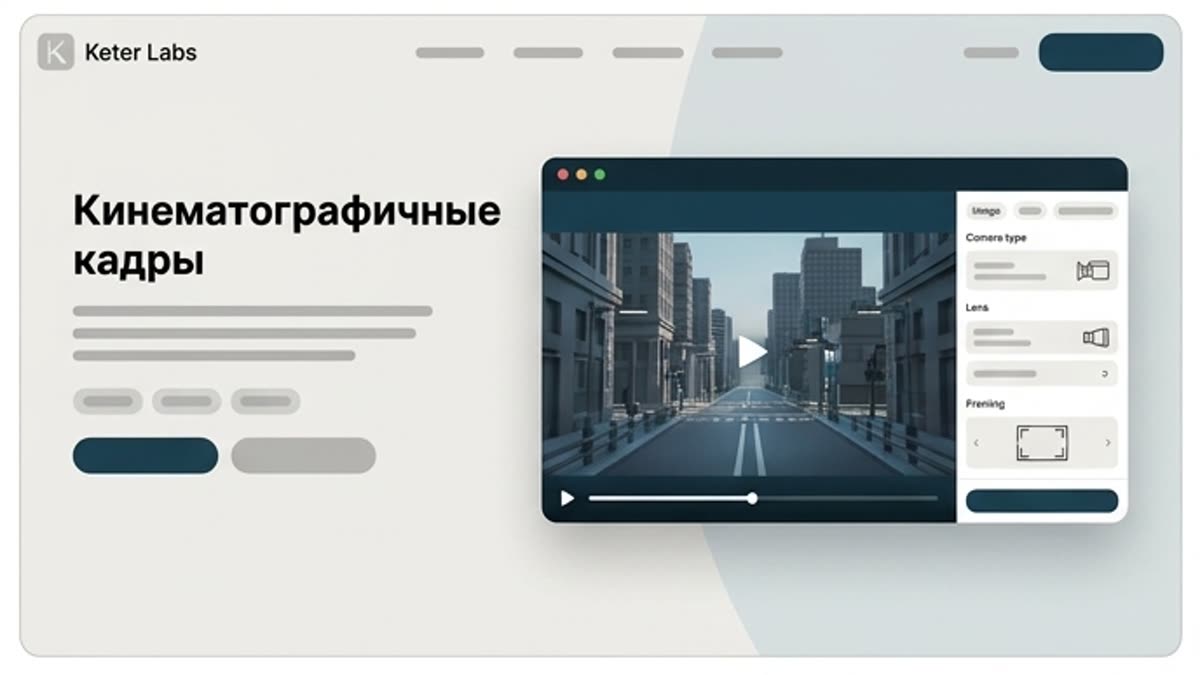
Cinematic shots tool
Cinematic shots help you define the camera language, angle, movement and mood for AI video in advance. Useful for product motion, ads, teasers and presentation scenes.
What's included
What this section gives you.
The camera serves the message
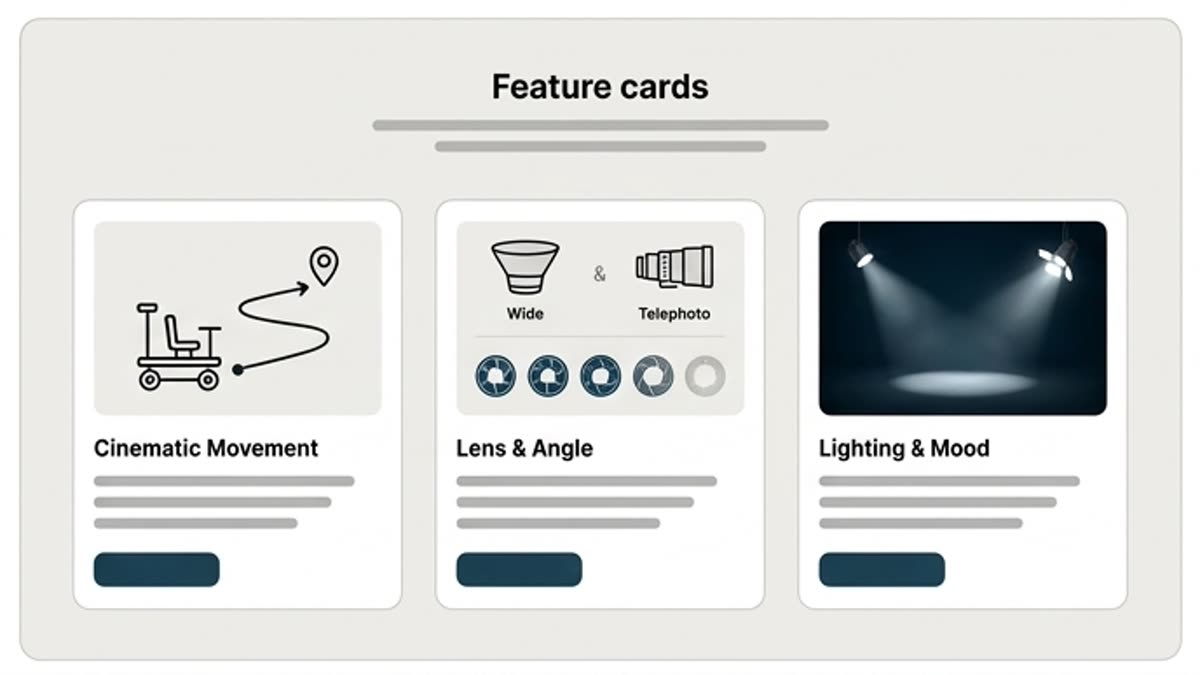
Plan a push-in, orbit, pan, macro, reveal or handheld move so the motion explains the product or scene.
Less random motion
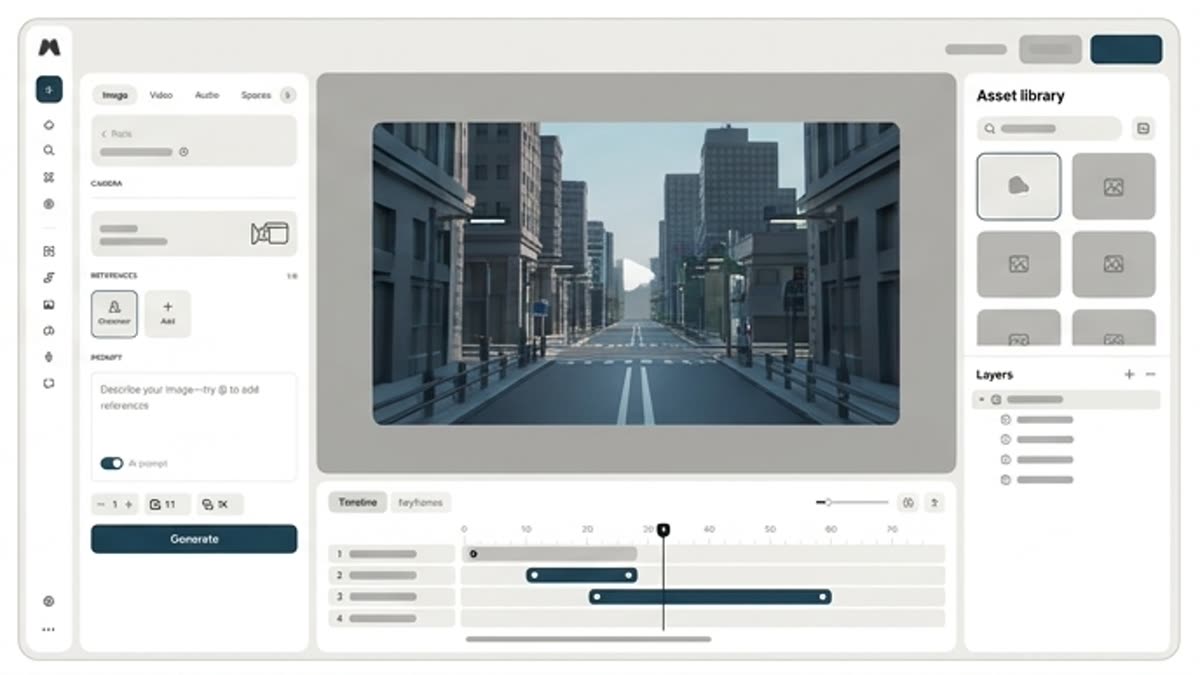
A clear shot description makes AI video look directed rather than chaotic.
Built for storyboards
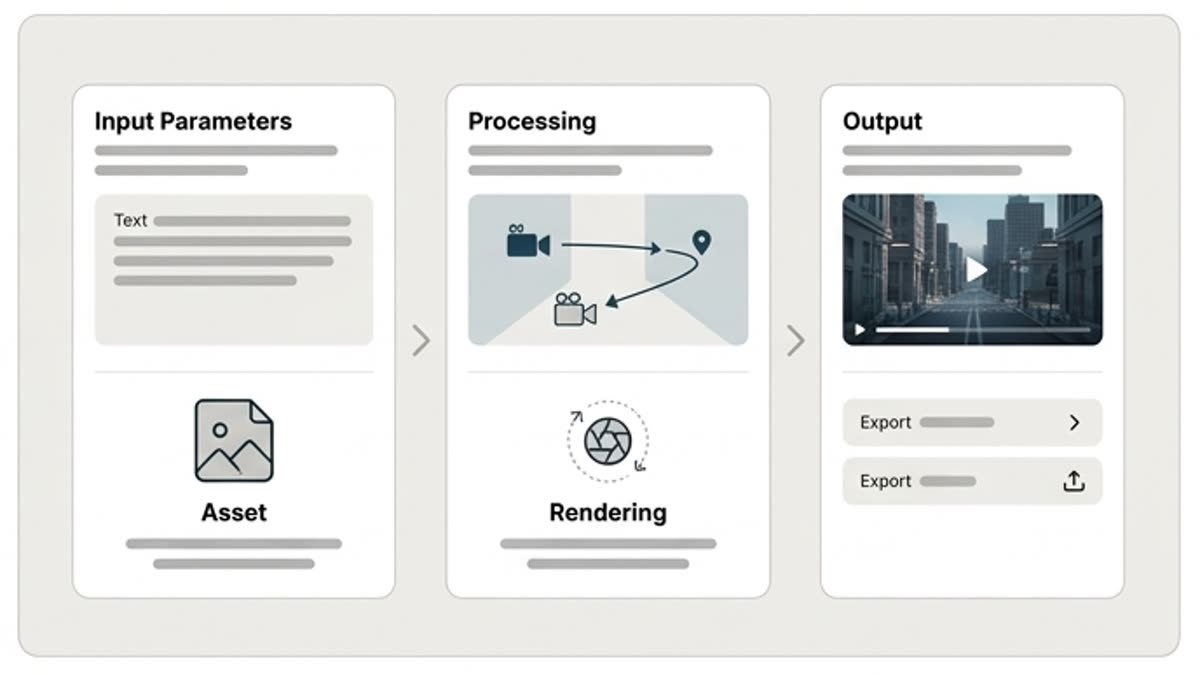
Use cinematic shots as the base for a series of clips, a presentation or a video concept.
When to use it
Common jobs this section is built for.
These examples make it easier to choose where to start and which nearby section to open next.
You need to show a product beautifully
Pick a camera move that reveals the shape, material, packaging or interface.
You need a storyboard for AI video
Assemble several cinematic shots as a plan for the future video.
The video looks too random
Refine the shot language and give the camera a clear role.
Workflow
How it works inside Keter Labs.
Every section in Keter Labs follows the same shape: a clear brief, a fast first draft, refinement in the editor, and a result saved into the project.
Step 1
Describe the scene, subject, mood and purpose of the shot.
Step 2
Choose the camera movement and the elements that must stay stable.
Step 3
Save the shot direction and use it in the video generator or video workflow.
Related sections
Where to go next.
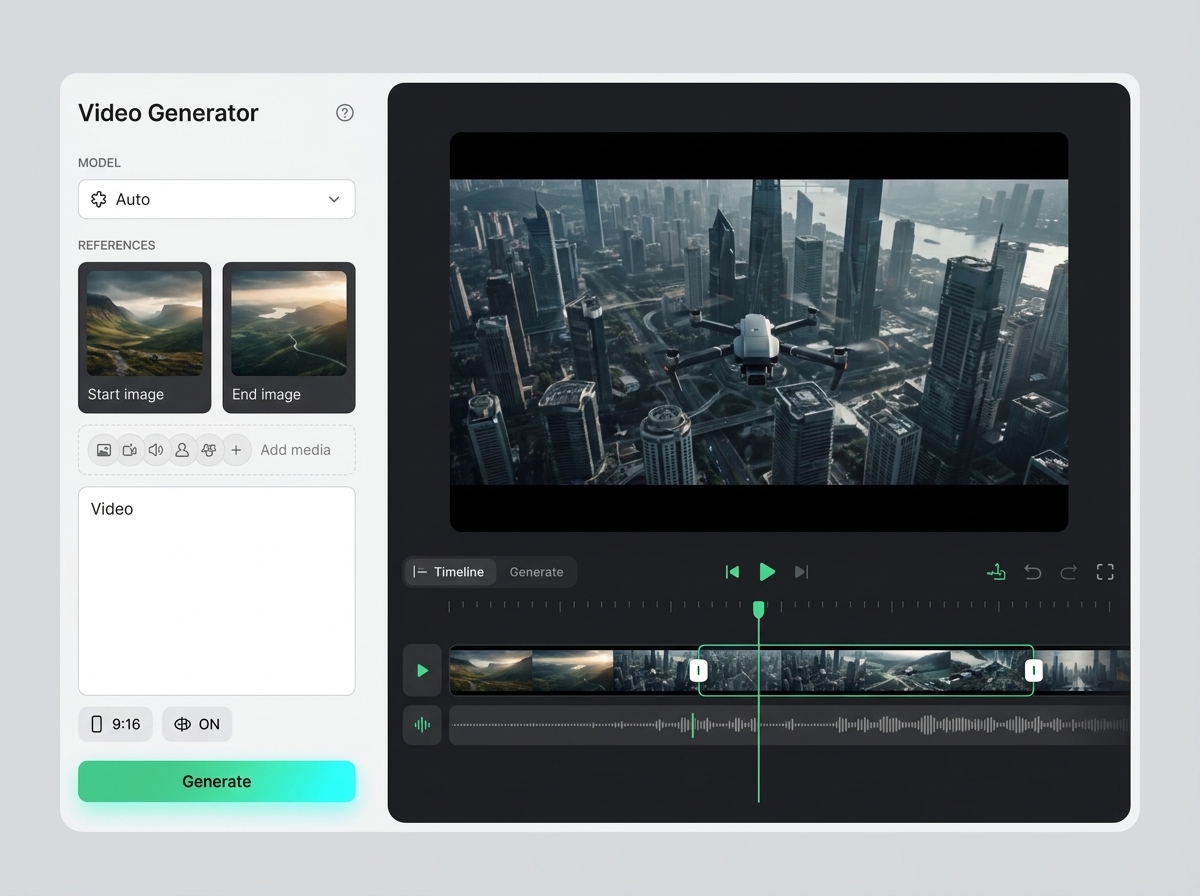
Change camera angles
Change camera angles helps users understand a specific AI creative task in plain language: what goes in, what comes out, where it fits in production, and how to keep the result useful instead of treating it as a one-off experiment.
Open Change camera angles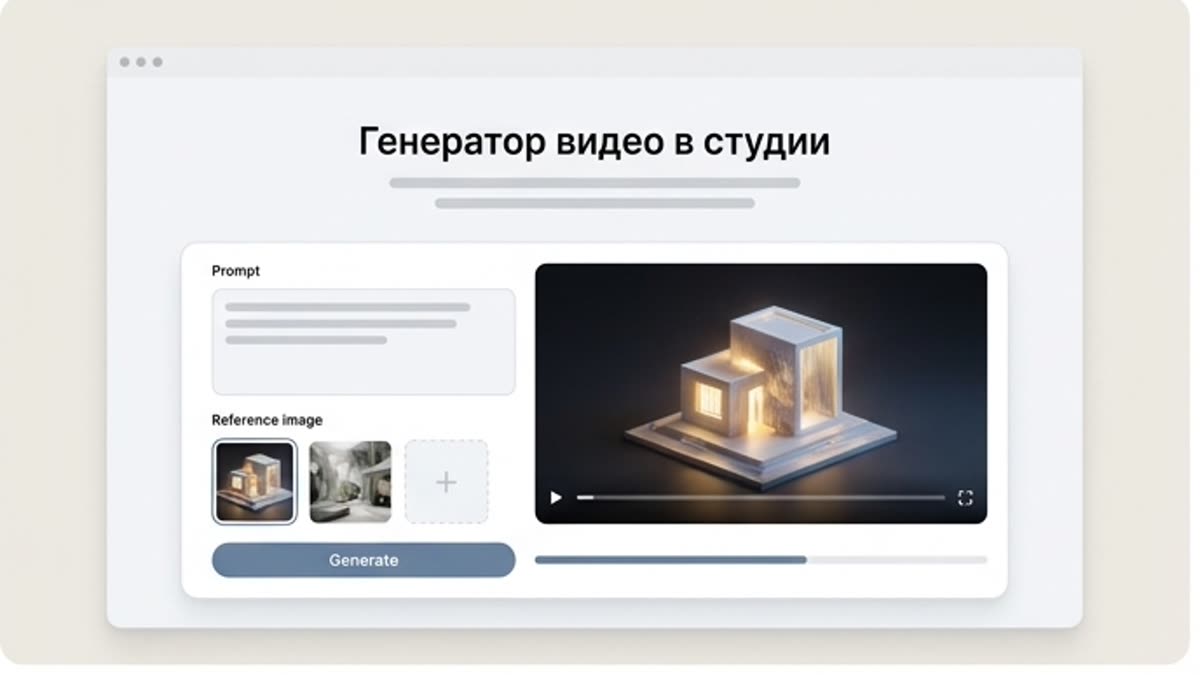
Studio video generator
The studio video generator creates short AI scenes from text, an image, a product or a motion reference. All clips, prompts, source frames and subsequent edits stay in one project.
Open Studio video generatorKling 3.0 Motion Control
Kling 3.0 Motion Control is covered as a production option inside Keter Labs, not as a standalone novelty. The page explains where the model fits, what kind of input it needs, and how to judge whether the result is ready for a real project.
Open Kling 3.0 Motion ControlReady when you are
Bring this workflow into your next project.
Spin up assets, lock in versions and align your team around a single creative platform.
Create account