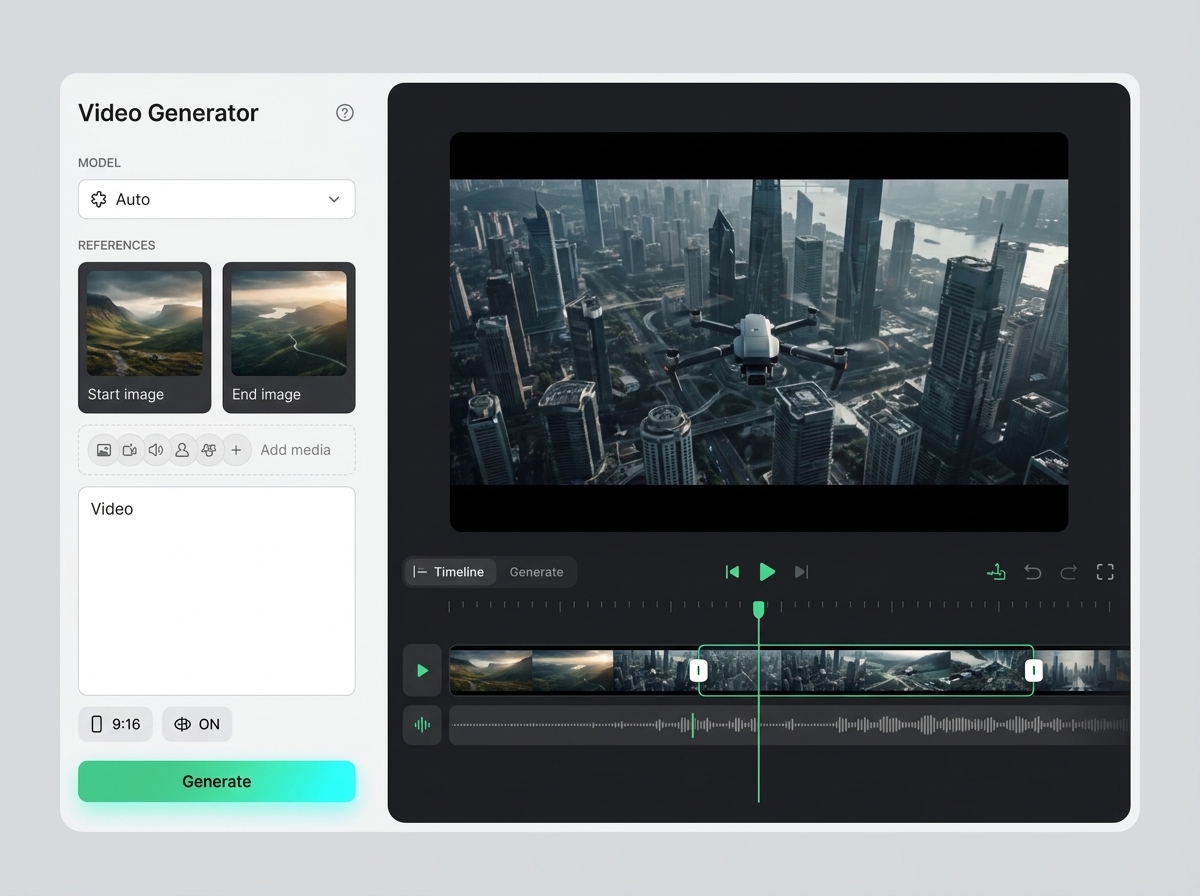
How Canvas selects the route
With no media connected, Seedance runs text-to-video. With one source image, it runs image-to-video.
Available in Canvas
Seedance 2.0 is available as a video-generation node in Keter Canvas. The current reliable paths are text-to-video and animation from one source image, with the result connected to the rest of the workflow.
What's included
Start from a prompt alone to create a moving concept without preparing source media first.
Connect one source image when the composition should remain anchored while Seedance adds motion.
Choose Quality or Mini mode, set duration, resolution and aspect ratio, then review the generated video beside the inputs that produced it.
When to use it
These examples make it easier to choose where to start and which nearby section to open next.
Use text-to-video for a first moving concept when there is no approved source frame yet.
Use one source image when the composition and direction of the shot should stay anchored.
Keep the generated clip connected to editing, audio, review and export steps in the same Canvas graph.
Details
With no media connected, Seedance runs text-to-video. With one source image, it runs image-to-video.
The available node supports 4–15 second clips, common landscape, portrait and square formats, and Quality or Mini execution. Quality can use the higher resolution option; Mini is limited to its supported tiers.
The runtime accepts reference media, but Canvas does not yet expose deterministic numbered ordering for multi-reference sets. Use text or one source image when reference order matters.
Workflow
Every section in Keter Labs follows the same shape: a clear brief, a fast first draft, refinement in the editor, and a result saved into the project.
Open Canvas and add a Seedance video node to the workflow.
Write the prompt and either leave media disconnected for text-to-video or connect one image for image-to-video.
Choose the mode, duration, resolution and aspect ratio that fit the intended delivery.
Run the node, review motion and continuity, then connect the result to editing, audio, review or export steps.
Related sections
Kling 3.0 is covered as a production option inside Keter Labs, not as a standalone novelty. The page explains where the model fits, what kind of input it needs, and how to judge whether the result is ready for a real project.
Open Kling 3.0Google Veo 3.1 is covered as a production option inside Keter Labs, not as a standalone novelty. The page explains where the model fits, what kind of input it needs, and how to judge whether the result is ready for a real project.
Open Google Veo 3.1Video AI models is a practical Keter Labs help page on how to choose a video model based on duration, motion, style, speed, and generation budget. It helps you quickly understand the preparation, limitations, sequence of steps, and criteria for a finished result without a long search across multiple pages.
Open Video AI modelsAI video generator helps users understand a specific AI creative task in plain language: what goes in, what comes out, where it fits in production, and how to keep the result useful instead of treating it as a one-off experiment.
Open AI video generatorReady when you are
Spin up assets, lock in versions and align your team around a single creative platform.
Open Canvas for Seedance