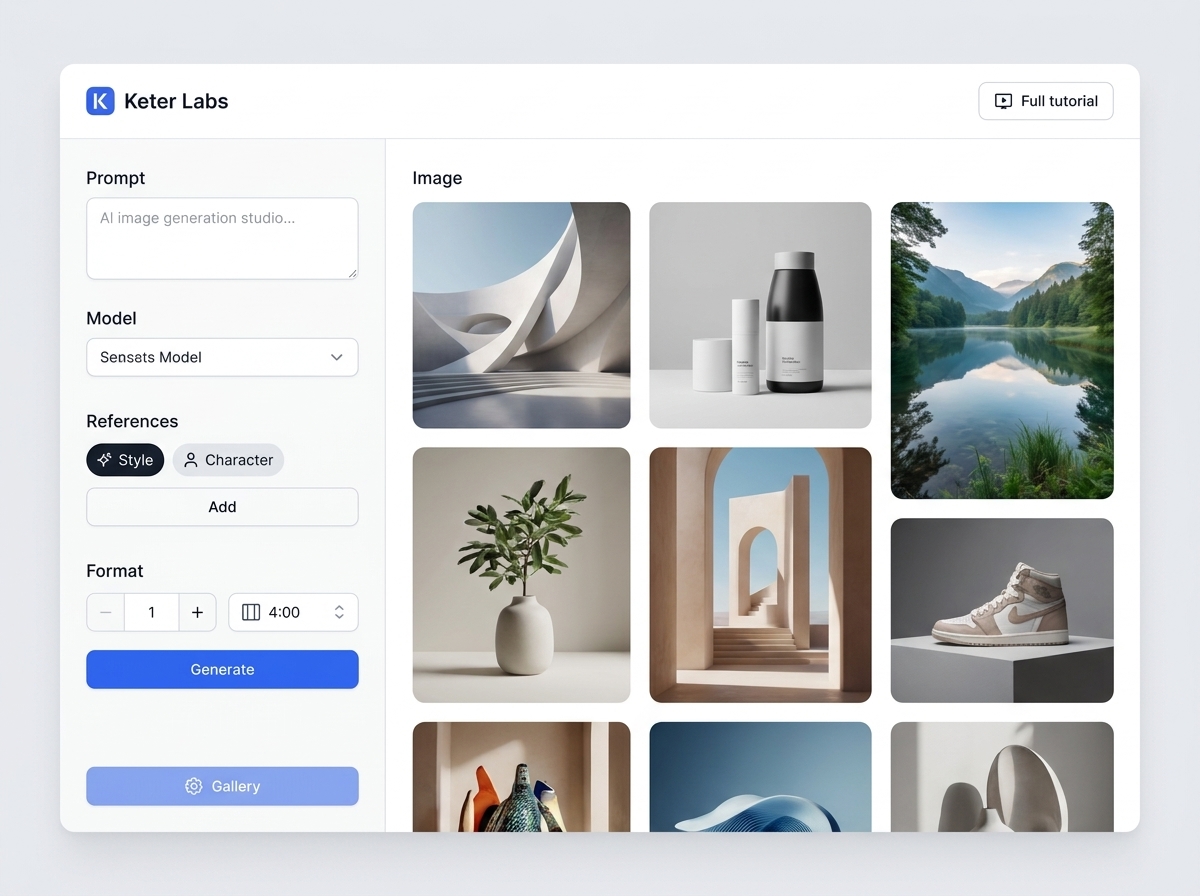
What this page covers
The main focus of this section: store, compare and refine icons in a consistent style. It helps you understand the tool's boundaries, the preparation and the criteria for a finished result.
Documentation
The “Icon workspace” section provides practical guidance on how to store, compare and refine icons in a consistent style. It helps you prepare materials, complete the steps in Keter Labs, check the limitations and bring the result to a working state.
What's included
This section shows how to apply the topic in practice: store, compare and refine icons in a consistent style. The text brings together the context, order of steps and checks that help you use this page in real work.
Before you start, check the icon's purpose, style, size, background, set of states and legibility requirements. This makes it easier to avoid repeated iterations, unnecessary credit charges and confusion within the team.
Before handing anything over, review contrast, scaling, style consistency, export and whether the set is ready for the interface. Once these points are covered, the material or setting can be used in your workflow.
When to use it
These examples make it easier to choose where to start and which nearby section to open next.
Open this page when the team faces the task: store, compare and refine icons in a consistent style. The section helps you quickly understand the order of steps without a long search through the help center.
This material is easy to share with colleagues: it explains the preparation, roles, checks and expected result for the “Icon workspace” topic.
Use this section as a final checklist: contrast, scaling, style consistency, export and whether the set is ready for the interface should be clear before the task goes to a client, the team or production.
Details
The main focus of this section: store, compare and refine icons in a consistent style. It helps you understand the tool's boundaries, the preparation and the criteria for a finished result.
Start with the goal and input materials, then complete the steps in the interface and record important decisions. For this topic, the icon's purpose, style, size, background, set of states and legibility requirements are especially important.
If your task is broader than one section, move on to the related topics: icon generator, icon workspace, Designer and file export. This way you keep the context and assemble a complete workflow faster.
Workflow
Every section in Keter Labs follows the same shape: a clear brief, a fast first draft, refinement in the editor, and a result saved into the project.
Define the task and expected result: store, compare and refine icons in a consistent style. Record who will use the final material or setting.
Prepare the icon's purpose, style, size, background, set of states and legibility requirements. If a team is working on the task, check roles and access in advance.
Complete the steps in Keter Labs and save important parameters, versions, prompts, files or links inside the project.
Before finishing, check contrast, scaling, style consistency, export and whether the set is ready for the interface; return to the related help sections if needed.
Related sections
The "Keter Labs help center" section collects practical guidance on the topic: find the right instructions on tools, plans, permissions, credits, the API and teamwork. The section helps you prepare materials, complete the steps in Keter Labs, check the limits and bring the result to a working state.
Open Keter Labs help centerThe "Quickstart" section brings together practical guidance on a single topic: how to get started in Keter Labs: create a project, choose a tool, add references and save your first result. It helps you prepare materials, complete the steps in Keter Labs, check the limitations and bring the result to a working state.
Open QuickstartThe "Projects" section brings together practical guidance on a single topic: how to organize files, versions, assets and results inside Keter Labs projects. It helps you prepare materials, complete the steps in Keter Labs, check the limitations and bring the result to a working state.
Open ProjectsThe "Troubleshooting" section gathers practical guidance on one topic: quickly diagnose errors with generation, access, files, payments, exports, and result quality. It helps you prepare materials, complete the steps in Keter Labs, check the limitations, and bring the result to a working state.
Open TroubleshootingReady when you are
Spin up assets, lock in versions and align your team around a single creative platform.
Create account