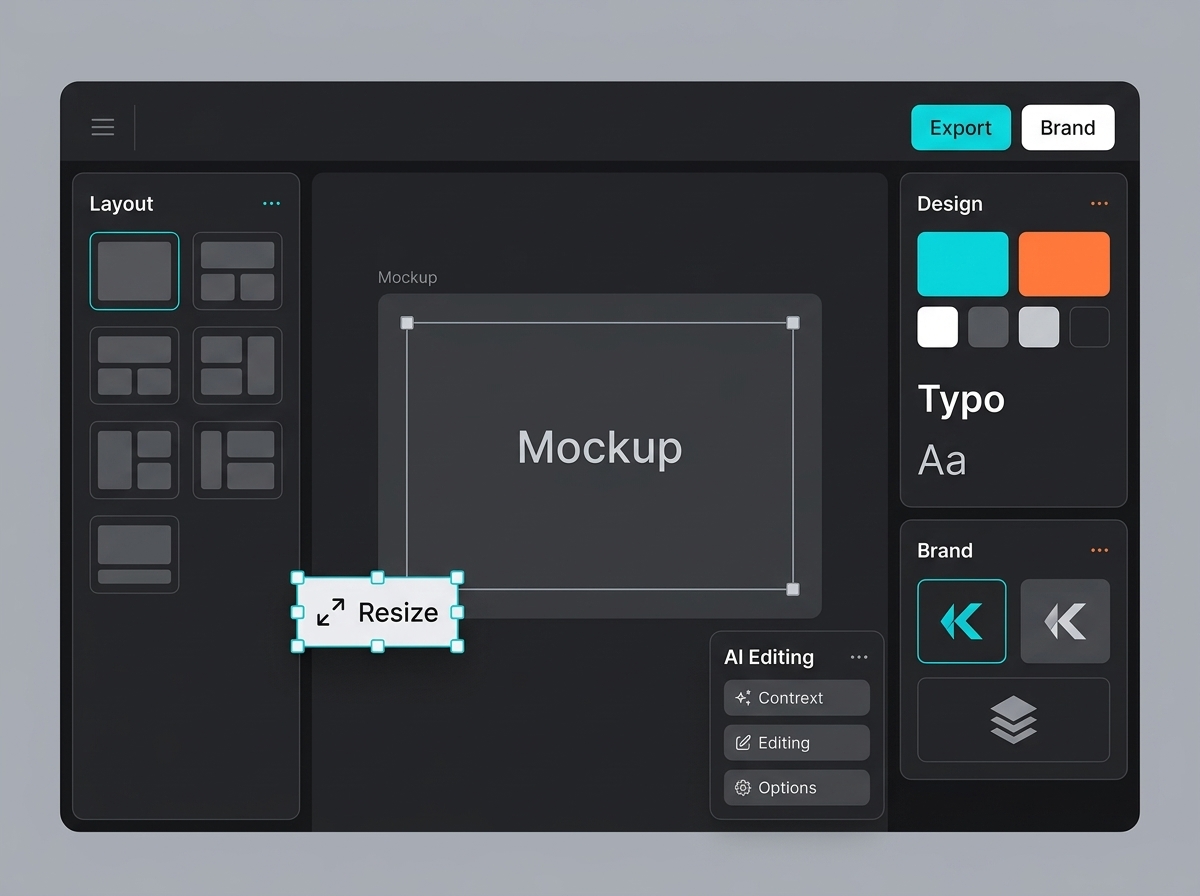
What is important to understand
The main idea of the section: use the Designer node in Spaces to automate layouts inside a visual workflow. It answers the user's practical question and shows which limitations to consider in advance.
Documentation
Designer node is a practical Keter Labs help-center page on how to use the Designer node in Spaces to automate layouts inside a visual workflow. The section helps you quickly understand the preparation, limitations, sequence of steps, and criteria for a finished result without a long search across different pages.
What's included
This page explains how to use the Designer node in Spaces to automate layouts inside a visual workflow. You get working context rather than a general overview: where to start, what to check, and when to move to the next step.
Before you begin, prepare the template, input images, variables, sizes, brand rules, and the expected export. This reduces the number of accidental iterations and helps the team agree on the result in advance.
After completing a step, check the node connections, data substitution, layers, final sizes, and the stability of repeated runs. Once these points are covered, the material, setting, or process can be safely handed off.
When to use it
These examples make it easier to choose where to start and which nearby section to open next.
Open this section when you need to use the Designer node in Spaces to automate layouts inside a visual workflow, but do not want to spend time searching for similar answers in different parts of the help center.
The material is easy to send to colleagues: it records the preparation, expected result, checks, and neighboring sections needed for a complete workflow.
Use the page as a checklist: the node connections, data substitution, layers, final sizes, and the stability of repeated runs should be clear before the task goes to a client, the team, or production.
Details
The main idea of the section: use the Designer node in Spaces to automate layouts inside a visual workflow. It answers the user's practical question and shows which limitations to consider in advance.
Start with the goal and input materials, then complete the steps in the interface and save decisions in the project. For this topic, the template, input images, variables, sizes, brand rules, and the expected export are especially important.
If the task is broader than one section, move on to the related topics: Spaces, nodes, utility nodes, and design editor. This way you keep the context and assemble a complete workflow faster.
Workflow
Every section in Keter Labs follows the same shape: a clear brief, a fast first draft, refinement in the editor, and a result saved into the project.
Define the specific task: use the Designer node in Spaces to automate layouts inside a visual workflow. Record who is responsible for the result and where it will be used.
Prepare the template, input images, variables, sizes, brand rules, and the expected export. For team work, check the roles, access permissions, and storage location for materials right away.
Complete the action in Keter Labs and save the important parameters, versions, files, prompts, or links inside the project.
Before finishing, check the node connections, data substitution, layers, final sizes, and the stability of repeated runs; then move on to the related topics: Spaces, nodes, utility nodes, and design editor.
Related sections
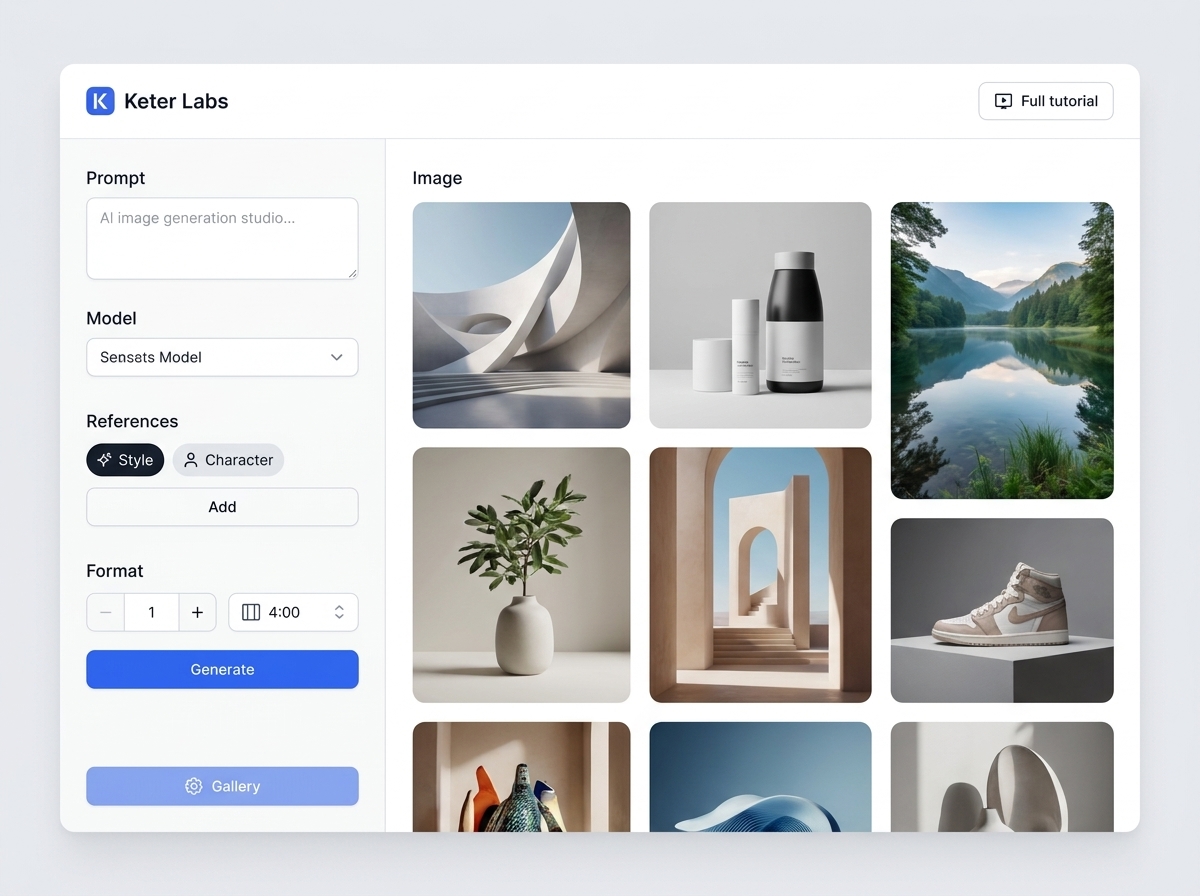
The "Keter Labs help center" section collects practical guidance on the topic: find the right instructions on tools, plans, permissions, credits, the API and teamwork. The section helps you prepare materials, complete the steps in Keter Labs, check the limits and bring the result to a working state.
Open Keter Labs help centerThe "Quickstart" section brings together practical guidance on a single topic: how to get started in Keter Labs: create a project, choose a tool, add references and save your first result. It helps you prepare materials, complete the steps in Keter Labs, check the limitations and bring the result to a working state.
Open QuickstartThe "Projects" section brings together practical guidance on a single topic: how to organize files, versions, assets and results inside Keter Labs projects. It helps you prepare materials, complete the steps in Keter Labs, check the limitations and bring the result to a working state.
Open ProjectsThe "Troubleshooting" section gathers practical guidance on one topic: quickly diagnose errors with generation, access, files, payments, exports, and result quality. It helps you prepare materials, complete the steps in Keter Labs, check the limitations, and bring the result to a working state.
Open TroubleshootingReady when you are
Spin up assets, lock in versions and align your team around a single creative platform.
Create account